Controlling LEDs with an output shift register
Caution
This tutorial is obsolete. See the updated documentation to learn how to use output shift registers and LED drivers with MobiFlight.
As you continue to build panels you may encounter situations where you have more LEDs to control than there are pins available on your Arduino. The solution is to use a shift register like the 74HC595. These allow you to have individual control of 8 LEDs while only using three pins on the Arduino. With the addition of a fourth pin you can also get PWM control of the LED brightness.
MobiFlight supports up to 32 bits of shift registers in a chain (typically four eight-bit chips), and up to six chains of output shifters can be connected to a single Arduino.
- A 74HC595 chip
- 8 LEDs
- 8 resistors (220Ω or similar)
Connect the 74HC595 to your Arduino and LEDs as follows:
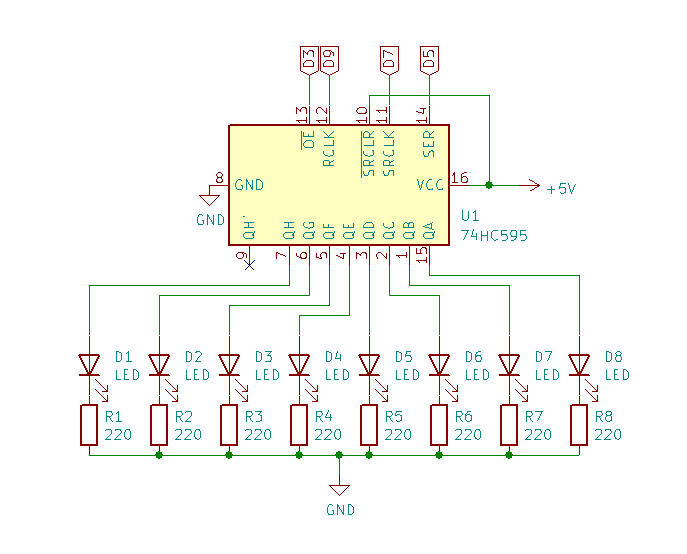
For a more detailed tutorial on how to make the connections see this blog post from Last Minute Engineers.
Configure a new device for your Arduino as follows:
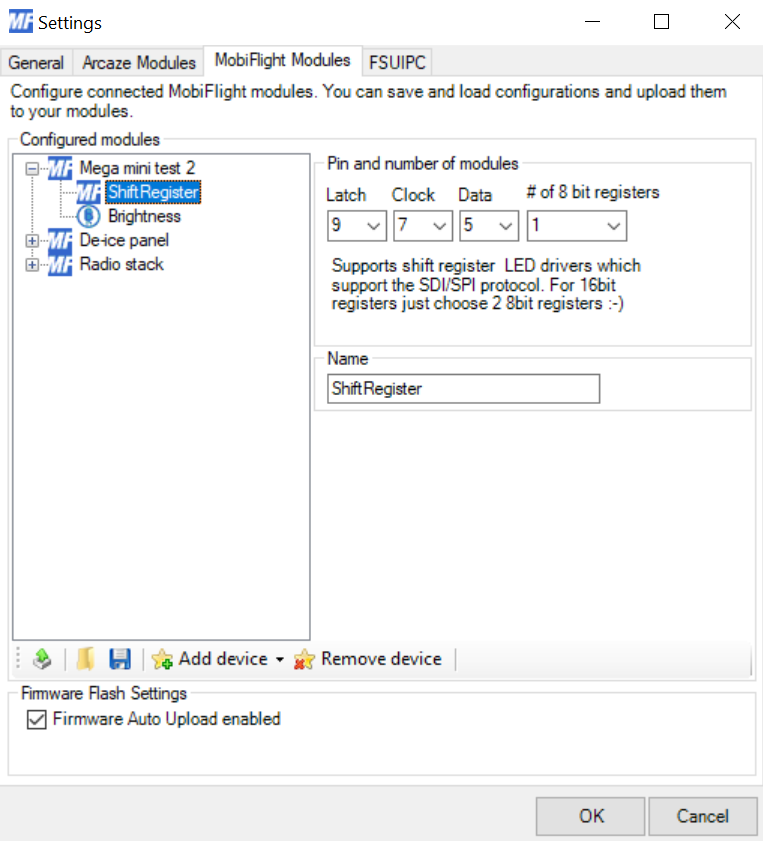
Note that you are only mapping the three pins to load data into the 74HC595. The brightness control is configured as a separate device in the next section. If you use different pins than D5, D7, and D9 here is how you should map the dropdowns in MobiFlight to the pins on the 74HC595:
| MobiFlight setting | 74HC595 input | 74HC595 pin |
|---|---|---|
| Latch | RCLK | 12 |
| Clock | SRCLK | 11 |
| Data | SER | 14 |
Configure a new device (LED / Output) for your Arduino as follows:
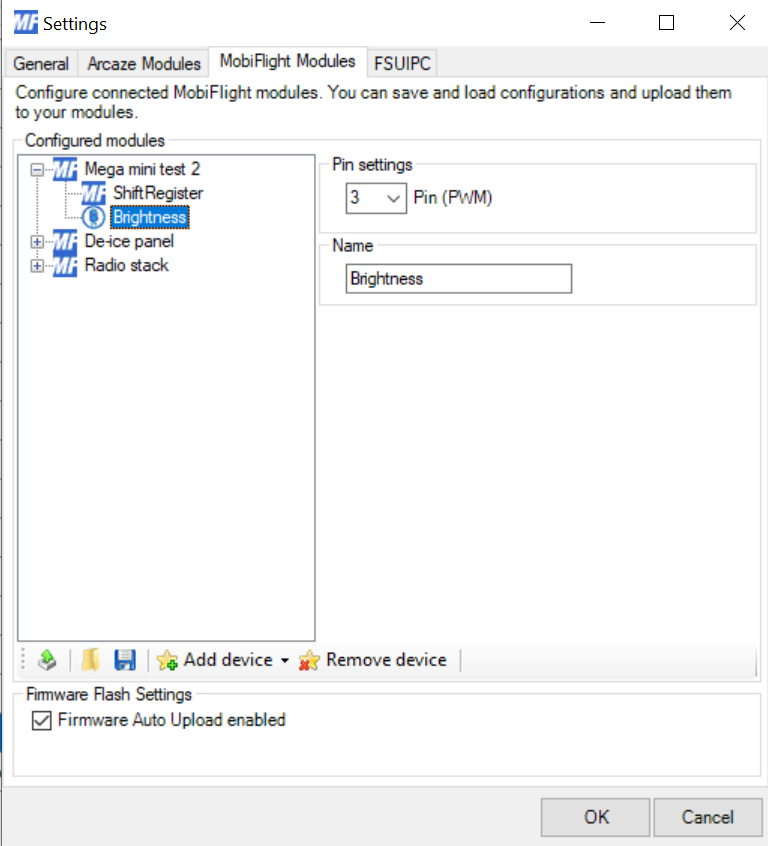
Note that the selected pin must support PWM. If you do not want to add support for brightness control skip this step and connect pin 13 of the 74HC595 (~OE) directly to ground.
For each output you want to assign to an LED configure the output as follows:
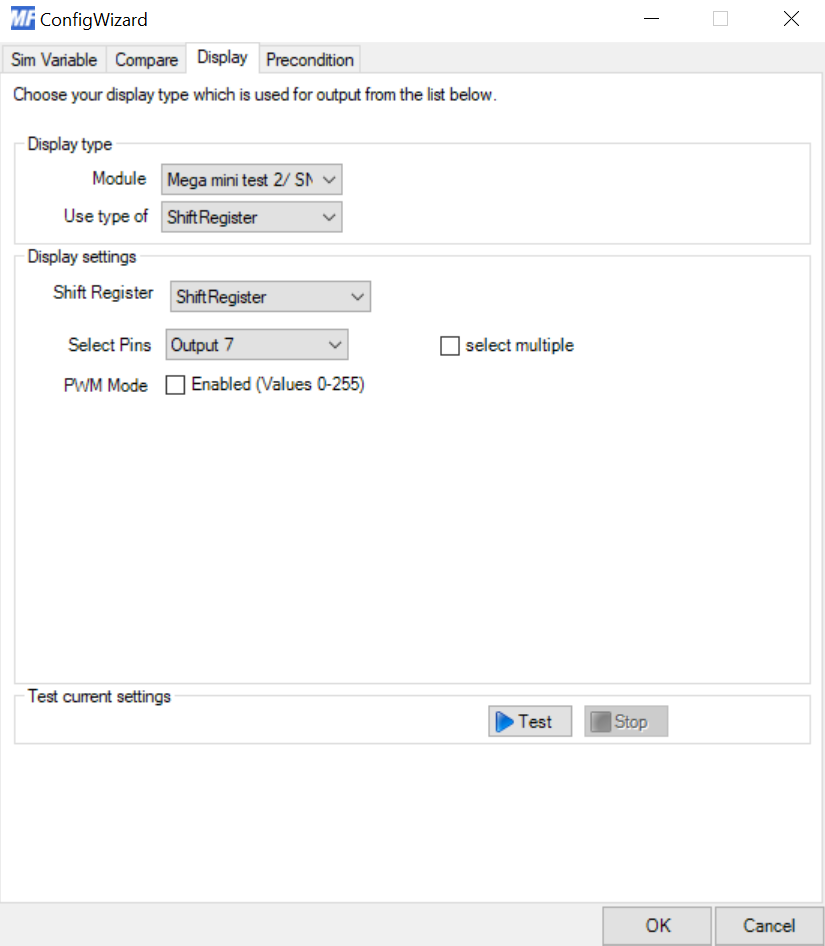
The Select Pins dropdown will show eight different possible outputs. Select the output associated with the LED you want to light up based on the output. Add additional output configurations for each additional value you want to display, selecting a different output for the remaining configurations.
If you connected the ~OE pin to your Arduino you can configure an output to vary the brightness of the LEDs as follows:
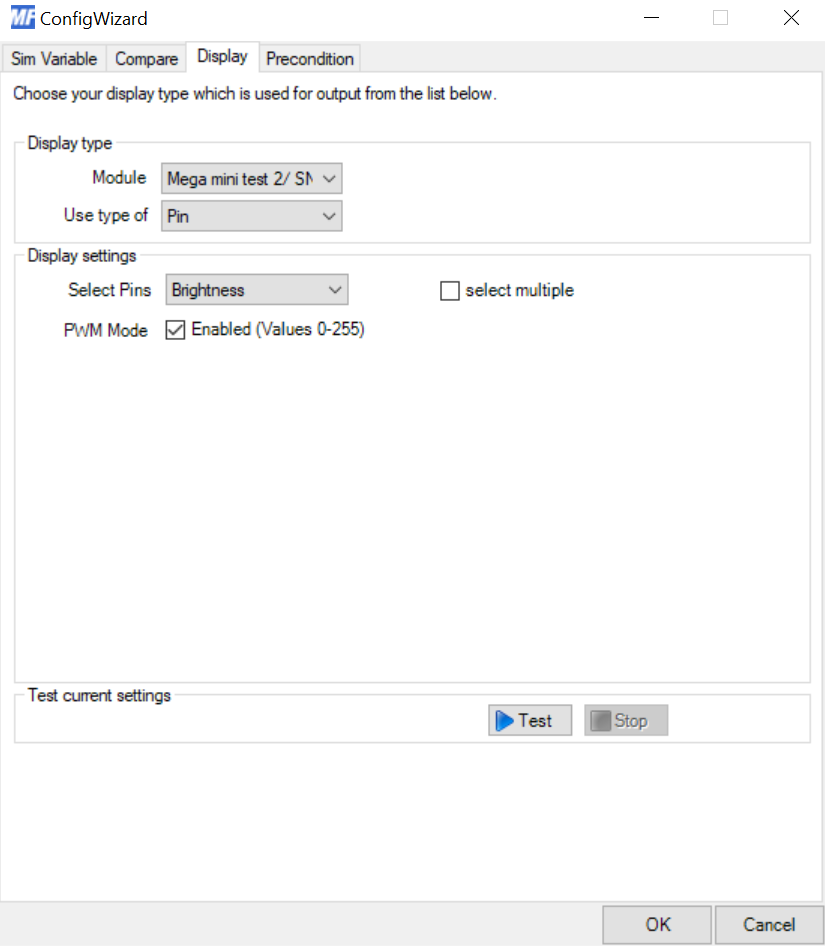
The output value must be in the range of 0-255 to control the brightness so you may need to apply an output transformation to the raw value. It is common for the brightness value to get reported from the sim as a percent so a transformation like this will scale the value appropriately:
255 * ($/100)
The basic shift register support opens up a wide range of possibilities for MobiFlight. While this tutorial walked through using a basic shift register the same concepts apply to other chips that function like shift registers. LED control chips like the TLC5917IN, TLC5940 and DM13A work the same way with MobiFlight but have the added benefit of ensuring constant current to the LEDs while only requiring a single resistor. While the wiring is slightly different the settings in MobiFlight are the same.
The following drivers should be pin to pin compatible, albeit with different packages and sometime (mostly negligible) performance differences, but be sure to always check the datasheet of a given component to be sure. They usually have an example circuit. If unsure, politely ask on #hardware or #pcb-design on Discord. Also, if you use any of these listed below, feel free to add coments and vendor links after them,
-
STP16CP05
-
TLC5927
-
TLC5928
-
TLC59283 (SSOP24 p0.64) (cheap on Mouser)
-
TB62701
-
TB62706
-
TB62709
-
TB62747 (SSOP24 p1-p0.64) (cheap on Mouser)
-
TC62D748 (SSOP24 p0.64) (cheap on Mouser)
-
DM13A (SSOP24 p1-p0.64)
-
DM134/5/6 (SSOP24 p1-p0.64)
-
MBI5024 (SSOP24 p1-p0.64)
-
MBI5026 (DIP-SOP-SSOP)
-
MBI5041 (SSOP24 p1-p0.64)
-
SCT2210
-
SCT2026
-
FD9802
- MobiFlight Connector Installation
- Mobiflight Connector BETA version installation
- Modules
- MobiFlight Connector Files Structure
- MobiFlight Connector Uninstall
- Modules Reset to factory default
- Verifying the WASM module installation and locating the MSFS2020 community folder
- Verifying the WASM module installation and locating the MSFS2024 community folder
- Using a Winwing FCU with MobiFlight
- Using VKB controllers with MobiFlight
- Providing logs from MobiFlight
- MobiFlight Connector How does it work
- Mobiflight Connector Main Window
- Flash module with MobiFlight firmware
- Input and Output devices
- Joysticks
- Midi Boards
- Sim Variables (for Output)
- Input Actions
- Merging configuration files
- Disabling specific COM ports
- Examples Output LEDs
- Examples Input Switch
- Example 7 segment display
- Example Servo motor
- Controlling LEDs with an output shift register
- Adding lots of buttons with an input shift register
- Beginner's guide to input multiplexers
- Key Matrix with standard MobiFlight and Multiplexers
- Tutorial Easy Driver and x.27 or x.40 Stepper Motor
- Tutorial for Airbus VS display via 7-Segment LED Module
- Example Analog Input Potentiometer
- Baron G58 Tutorial Gear, Flaps, Mags, ELT Input Output Programming
- Using Mobiflight to control arduino-based 3rd party panels (RealSimGear GNS530)
- How to use a VNH2SP30 DC motor shield with MobiFlight
- Using 3D printer mainboards
- Playing sounds by sending keystrokes to AutoHotKey
- Using the selector knob on a Honeycomb Bravo
- Using an adjustable 12 position switch as a GA starter
- Brightness of LCD displays with I2C
- Using three-position switches
- Transponder with one Rotary
- Workflow for Creating Flight Simulation Panels ‐ Part 1
- MSFS2020 RPN Tips and Tricks
- MSFS2020 Using the Custom Input Code Box
- MSFS2020 Install WASM module and Event List
- MSFS2020 How to Create and Use User Defined Lvars
- MSFS2020 How to Create a Blinking LED configuration
- MSFS2020 User Defined WASM Module Events Best Practices
- MSFS2020 Developer Mode, Model Behavior dialog and Console window
- MSFS2020 PMDG 737‐700 List of Events that require use of FSUIPC7
-
MSFS2020 PMDG 737‐700 Calibrate throttle idle and reverse thrust using interpolation (Valkyrie)
- MSFS2020 PMDG 737-700 Chrono unit functions implemented in Mobiflight
- Configuring PMDG 737 Parking Brake Lever Auto-Release with a Servo in Mobiflight
- Using encoder to drive a value back and forth within a given range

- Adding a custom board to MobiFlight
- User guide - Community Board and Custom Devices
- Developing your own custom devices/boards