As Front-end developers 🤓 we can build basic websites with nothing more than a text editor and a browser, but we want to up our game by adding a JavaScript framework like React or Vue and useful tools like Git to our workflow.
But wait! Our Mac isn’t ready. Before diving in, we’ll need to install a few items that will save we from confusing errors later. 😩
This is the minimum (IMO) setup we'll need to get up and run on our Mac and a checklist to set up our ✨ OS X for front-end development.
🚀 Let’s go!
- 🛡️ Security
- 💻 System Tweaks
- 🛠️ Command Line Developer Tools
- 🍺 Homebrew
- ⬛ Choose a Terminal App
- 👨🏻💻 Dev apps
- Curl
- Docker
- Colima
- Elasticsearch
- Findutils
- Firefox
- Arc
- Fonts
- Git
- Git flow
- Google Chrome
- GnuPG
- GNU sed
- GNU tar
- Grep
- Imagemagick
- iTerm2
- Warp
- Java Runtime
- MongoDB
- MySQL
- Ngrok
- Nodejs
- NVM
- fnm
- Bun
- pnpm
- Vite
- esbuild
- TypeScript
- Vitest
- Playwright
- oh-my-zsh
- Perl
- Postgresql
- Python
- Rainbarf
- Redis
- Ruby
- RVM
- SASS
- Tailwind CSS
- PostCSS
- Turborepo
- Nx
- Tmux
- Tmuxinator
- TOR
- PHP
- Postman
- Bruno
- SourceTree
- Vagrant
- VirtualBox
- Visual Studio Code
- Cursor
- X11
- Yarn
- ZSH
- GitHub Copilot CLI
- Claude CLI
- 👨🏻🎨 Designer apps
- 🧰 Really useful apps
- 🗃️ Other stuff
- Conclusion
✋🏻 First things first!
Keeping your system up to date is crucial. Keep an eye out for updates on the regular.
Before installing any new software, follow these instructions from Apple to upgrade macOS and your current software to the latest version.
This is for online protection when we're not in our home network or not behind a router.
sudo /usr/libexec/ApplicationFirewall/socketfilterfw --setglobalstate onWe're most likely using a portable laptop of some kind. If we lose it, the laptop gets stolen or someone tries to hack into it, our personal data is at risk. Using full-disk encryption is an extra layer of security to keep our mind at ease in case of potential intrusion.
🚧 Two main caveats:
- Do not misplace or forget your FileVault recovery key or login password. Losing this password means you cannot log in and without the recovery key everything on your computer is inaccessible if you can't decrypt the files during a recovery. iCloud is an option to store the Filevault password. Using iCloud, Apple Support will be able to assist you with recovering data. iCloud isn't fully encrypted so whilt it's convenient, it's less secure.
- If macOS gets corrupted and you need to download files from the drive after accessing the drive from an external case, it's not possible without the password and recovery key. Make sure you're both backing up using Time Machine on an external drive or a NAS.
Follow these instructions from Apple to enable FileVault Encryption.
Apple's default system settings are limiting and don't show a lot of information. Let's change the settings for better usability around the system.
chflags nohidden ~/LibraryAlternatively, open Finder, press ⇧ ⌘ H , ⌘ 2 , ⌘ J and check Show Library Folder. Unhiding this folder could be useful for manual backup, but it's not necessary.
defaults write com.apple.finder ShowPathbar -bool true
defaults write com.apple.finder ShowStatusBar -bool truedefaults write com.apple.finder _FXShowPosixPathInTitle -bool trueI don’t use Time Machine. It is better than nothing but not necessary. But keep this on if you have an external drive you use for backups.
sudo defaults write /Library/Preferences/com.apple.TimeMachine DoNotOfferNewDisksForBackup -bool truedefaults write -g AppleShowAllExtensions -bool truedefaults write com.apple.desktopservices DSDontWriteNetworkStores -bool true
defaults write com.apple.desktopservices DSDontWriteUSBStores -bool trueThese tweaks improve the developer experience by optimizing keyboard behavior, file watching, and system performance.
# Faster key repeat rate (useful for vim/code navigation)
defaults write NSGlobalDomain KeyRepeat -int 1
defaults write NSGlobalDomain InitialKeyRepeat -int 10

# Disable press-and-hold for keys (enables key repeat)
defaults write NSGlobalDomain ApplePressAndHoldEnabled -bool false

# Show hidden files by default in Finder
defaults write com.apple.finder AppleShowAllFiles -bool true

# Faster Dock animation
defaults write com.apple.dock autohide-time-modifier -float 0.5

# Disable auto-correct (helpful when typing code)
defaults write NSGlobalDomain NSAutomaticSpellingCorrectionEnabled -bool false

# Save screenshots to dedicated folder
mkdir -p ~/Screenshots
defaults write com.apple.screencapture location ~/Screenshots

# Save screenshots as JPG (smaller file size)
defaults write com.apple.screencapture type jpg

# Increase file watcher limit (essential for Vite, Webpack, and other dev tools)
echo kern.maxfiles=65536 | sudo tee -a /etc/sysctl.conf
echo kern.maxfilesperproc=65536 | sudo tee -a /etc/sysctl.conf

# Restart affected apps to apply changes
killall Finder Dock SystemUIServerThe first thing we'll need to install from the command line are our Mac's command line developer tools. Installing these now will prevent weird errors later.
Xcode weighs something ~2GB and is useful for the iOS simulator but is not necessary unless you're developing iOS or Mac apps. Good news is Apple provides a way to install only the Command Line Tools, without Xcode.
Using Terminal, install the tools with this command:
xcode-select --installTo check if the tools are already installed, type the following command in your terminal app and hit return:
xcode-select --versionThere's not a straightforward way to update Xcode Command Line Tools, so we have to remove the existing tools to reinstall from scratch.
sudo rm -rf /Library/Developer/CommandLineTools
xcode-select --installInstead of installing the next few tools by going to each tool's website, finding the download page, clicking the download link, unzipping the files, and manually running the installer, we’re going to use Homebrew 😍.
Homebrew is a tool that lets us install, update and uninstall software on our Mac from the command line. This is faster and safer than the manual approach and generally makes your development life easier.
Install Homebrew with:
/bin/bash -c "$(curl -fsSL https://raw.githubusercontent.com/Homebrew/install/HEAD/install.sh)"Since you'll be interacting with your Mac using the command line in this article, you'll need a terminal app.
Any of the following are good options:
- Warp - Modern, AI-powered terminal with IDE-like features (Recommended for 2025)
- iTerm2
- Hyper
- Terminal (the default app that comes with our Mac's)
brew install curlbrew install boot2docker
brew install docker-composeColima is a lightweight, fast alternative to Docker Desktop for macOS. It provides container runtimes with minimal resource usage and is completely free.
brew install colimaStart Colima:
colima startColima is compatible with Docker CLI and docker-compose, making it a drop-in replacement for Docker Desktop. It's faster, uses less memory, and doesn't require a license for commercial use.
For Kubernetes support:
colima start --kubernetes# tap the Elastic Homebrew repository
brew tap elastic/tap
# install the default distribution of Elasticsearch
brew install elastic/tap/elasticsearch-fullTo have it launched start elasticsearch and restart at login:
brew services start elasticsearchbrew install findutilsbrew install --cask firefoxArc is a modern browser built for productivity with features like spaces, split view, and a command bar. It's becoming increasingly popular among developers and designers.
brew install --cask arcArc reimagines how browsers should work with features like automatic tab organization, built-in note-taking, and seamless workspace switching.
brew tap homebrew/cask-fonts✨ The best font for developers 😍
brew install --cask font-jetbrains-monobrew install --cask font-fira-codebrew install git
# GitHub wrapper
brew install ghbrew install git-flowbrew install --cask google-chromebrew install gnupgbrew install gnu-sedbrew install gnu-tarbrew install grepbrew install imagemagick --disable-openmp --build-from-sourcebrew install --cask iterm2Warp is a modern, Rust-based terminal with AI-powered features, command palette, and IDE-like capabilities. It's the next generation of terminal apps.
brew install --cask warpWarp includes features like AI command search, shareable workflows, and intelligent autocomplete, making it an excellent choice for modern development.
Follow https://support.apple.com/HT204036
brew tap mongodb/brew
brew install mongodb-community@4.2
To have it launched start mongodb/brew/mongodb-community and restart at login:
brew services start mongodb/brew/mongodb-communitybrew install mysqlTo have it launched start mysql and restart at login:
brew services start mysqlbrew install --cask ngrokI recommend you use NVM instead of
brew install nodecurl -o- https://raw.githubusercontent.com/nvm-sh/nvm/v0.37.2/install.sh | bashRunning either of the above commands downloads a script and runs it. The script clones the nvm repository to ~/.nvm, and attempts to add the source lines from the snippet below to the correct profile file (~/.bash_profile, ~/.zshrc, ~/.profile, or ~/.bashrc).
export NVM_DIR="$([ -z "${XDG_CONFIG_HOME-}" ] && printf %s "${HOME}/.nvm" || printf %s "${XDG_CONFIG_HOME}/nvm")"
[ -s "$NVM_DIR/nvm.sh" ] && \. "$NVM_DIR/nvm.sh" # This loads nvm
Install latest node
nvm install nodeSet default
nvm use nodefnm (Fast Node Manager) is a fast and simple Node.js version manager built in Rust. It's significantly faster than nvm, especially on shell startup.
brew install fnmAdd fnm to your shell (for zsh):
eval "$(fnm env --use-on-cd)"Install and use Node:
fnm install --lts
fnm use lts-latest
fnm default lts-latest
fnm automatically switches Node versions based on .node-version or .nvmrc files in your projects, making it ideal for working with multiple projects.
Bun is an incredibly fast all-in-one JavaScript runtime and toolkit designed to replace Node.js. It includes a native bundler, test runner, and npm-compatible package manager.
brew tap oven-sh/bun
brew install bun
Or using the official installer:
curl -fsSL https://bun.sh/install | bashBun is significantly faster than Node.js for many operations and is becoming increasingly popular for modern frontend development.
pnpm is a fast, disk space efficient package manager that's becoming the preferred choice for many modern projects and monorepos.
brew install pnpmOr using npm:
npm install -g pnpmpnpm creates a non-flat node_modules structure that saves disk space and resolves dependency issues that npm and yarn sometimes face.
Vite is a next-generation frontend build tool that provides an extremely fast dev server and optimized builds. It's become the go-to choice for modern React, Vue, and Svelte projects.
npm install -g vite
# or with pnpm
pnpm install -g vite
You can also create projects directly:
npm create vite@latest
# or
pnpm create vite
Vite's speed comes from using native ES modules during development and esbuild for pre-bundling dependencies.
esbuild is an extremely fast JavaScript bundler and minifier written in Go. It's used under the hood by Vite and other modern tools.
npm install -g esbuild
# or with pnpm
pnpm install -g esbuild
esbuild can be 10-100x faster than traditional bundlers like Webpack, making it ideal for modern development workflows.
TypeScript has become the de facto standard for modern frontend development. It adds static typing to JavaScript, catching errors early and improving code quality.
npm install -g typescript
# or with pnpm
pnpm install -g typescript
You can also install tsx for running TypeScript files directly:
npm install -g tsx
# or with pnpm
pnpm install -g tsx
TypeScript is now used by default in most modern frameworks and is essential for large-scale frontend applications.
Vitest is a blazing-fast unit test framework powered by Vite. It's become the preferred testing solution for modern frontend projects.
npm install -g vitest
# or with pnpm
pnpm install -g vitest
Vitest provides a Jest-compatible API with better performance and native ESM support, making it ideal for Vite-based projects.
Playwright is a modern end-to-end testing framework that supports all major browsers. It's become the industry standard for reliable E2E testing.
npm install -g @playwright/test
# or with pnpm
pnpm install -g @playwright/test
After installation, initialize Playwright:
npm init playwright@latestPlaywright offers better reliability, faster execution, and more features compared to alternatives like Selenium or Puppeteer.
sh -c "$(curl -fsSL https://raw.github.com/ohmyzsh/ohmyzsh/master/tools/install.sh)"brew install perlbrew install postgresqlTo have it launched start postgresql and restart at login:
brew services start postgresqlbrew install pythonbrew install rainbarfbrew install redisTo have it launched start redis and restart at login:
brew services start redisI recommend you use RVM instead of
brew install rubyInstall GPG keys:
gpg2 --recv-keys 409B6B1796C275462A1703113804BB82D39DC0E3 7D2BAF1CF37B13E2069D6956105BD0E739499BDBInstall RVM with default Ruby:
\curl -sSL https://get.rvm.io | bash -s stablebrew install sass/sass/sassTailwind CSS is a utility-first CSS framework that has become the dominant choice for styling modern web applications. It provides a comprehensive set of utility classes for rapid UI development.
npm install -g tailwindcss
# or with pnpm
pnpm install -g tailwindcss
Initialize Tailwind in your project:
npx tailwindcss initTailwind's utility-first approach eliminates the need to write custom CSS while maintaining flexibility and enabling rapid prototyping.
PostCSS is a tool for transforming CSS with JavaScript plugins. It's essential for modern CSS workflows and is used by Tailwind CSS and many other tools.
npm install -g postcss postcss-cli
# or with pnpm
pnpm install -g postcss postcss-cli
PostCSS enables features like autoprefixing, nesting, and modern CSS transformations, making it a fundamental part of the modern frontend stack.
Turborepo is a high-performance build system for JavaScript and TypeScript monorepos. It's become the go-to choice for managing multiple packages in a single repository.
npm install -g turbo
# or with pnpm
pnpm install -g turbo
Create a new Turborepo:
npx create-turbo@latestTurborepo provides intelligent caching and parallel execution, making monorepo builds significantly faster than traditional approaches.
Nx is a powerful build system with first-class monorepo support and integrated tooling. It's widely used for large-scale enterprise applications.
npm install -g nx
# or with pnpm
pnpm install -g nx
Create a new Nx workspace:
npx create-nx-workspace@latestNx provides advanced features like computation caching, distributed task execution, and smart rebuilds, making it ideal for large teams.
brew install reattach-to-user-namespace
brew install tmuxbrew install tmuxinatorbrew install torbrew install phpbrew install --cask postmanBruno is a fast, open-source API client that stores collections directly in your filesystem. It's a privacy-focused alternative to Postman.
brew install --cask brunoBruno stores your API collections in plain text files (Bru format) making them easy to version control with Git. It's ideal for teams who want to track API changes alongside their code.
Personally I prefer to use the terminal but some developers prefer to use this type of tools
brew install --cask sourcetreebrew install --cask vagrantvagrant plugin install vagrant-vbguestbrew install --cask virtualboxbrew install --cask visual-studio-codeCursor is an AI-powered code editor built on VSCode. It features advanced AI assistance, natural language code editing, and intelligent code generation.
brew install --cask cursorCursor combines the familiar VSCode interface with powerful AI capabilities including:
- Chat with your codebase
- AI-powered code completion
- Natural language to code conversion
- Code refactoring and debugging assistance
It's becoming the preferred IDE for developers who want to leverage AI in their workflow.
brew install --cask xquartzbrew install yarnbrew install zshGitHub Copilot CLI brings AI-powered command suggestions directly to your terminal. It helps you find the right command, understand what it does, and safely execute it.
gh extension install github/gh-copilotNote: Requires GitHub CLI (gh) and an active GitHub Copilot subscription.
Usage:
gh copilot suggest "install packages with pnpm"
gh copilot explain "git rebase -i HEAD~3"
Claude CLI provides terminal access to Anthropic's Claude AI. It's useful for getting coding help, debugging, and code review directly from your command line.
Install via npm:
npm install -g @anthropic-ai/claude-cliOr with Homebrew:
brew install anthropic/claude/claudeUsage:
claude "explain this function" < myfile.js
claude chat  # Start an interactive session
Note: Requires an Anthropic API key.
brew install --cask figmabrew install --cask sketchYou should also consider using:
- Sketch Mirror (iOS app)
- User Flows (plugin)
- Craft (plugin)
Cost: $99
brew install --cask invisionsyncStats is a free, open-source macOS system monitor that lives in your menu bar. It shows CPU, memory, disk, network, and battery usage in real-time.
brew install --cask statsStats provides a lightweight alternative to paid apps like iStat Menus, with customizable widgets showing:
- CPU usage and temperature
- Memory usage
- Disk activity and space
- Network bandwidth
- Battery health and usage
Essential for developers who want to monitor system resources while running multiple development tools.
Dropbox is a modern workspace designed to reduce busywork-so you can focus on the things that matter. Sign in and put your creative energy to work.
brew install --cask dropbpoxGoogle's powerful search capabilities are embedded in Drive and offer unmatched speed, performance, and reliability. And features like Priority use AI to predict ...
brew install --cask google-driveSee where your time is going, improve your projects, increase efficiency. Schedule Future Projects. Easy, Intuitive Interface.
brew install --cask harvestToo many tools? Too much chaos? With Notion, all your work is in one place. All your projects tracked. All the features you need. Hassle-free wiki software. Better shared docs. Types: Personal Free, Personal Pro, Team, Enterprise.
brew install --cask notionbrew install --cask poeditMove and resize windows in macOS using keyboard shortcuts or snap areas
brew install --cask rectangleInstant messaging application focusing on security and privacy.
brew install --cask signalA better way to communicate. Unlike email, conversations in Slack are easy to follow. And they're more than conversations — you can make calls, share files, and even connect with other apps.
brew install --cask slackSpotify is a digital music service that gives you access to millions of songs.
brew install --cask spotifyTelegram lets you access your chats from multiple devices. Fast. Telegram delivers messages faster than any other application.
brew install --cask telegramUnpacks archive files
brew install --cask the-unarchiverOpen-source BitTorrent client
brew install --cask transmissionMultimedia player
brew install --cask vlcI recommend you look for an alternative to zoom 🤷🏻♂️
Zoom is the leader in modern enterprise video communications, with an easy, reliable cloud platform for video and audio conferencing, chat, and webinars across mobile, desktop, and room systems.
brew install --cask zoomusOnce in a while, run the following command and everything you’ve installed with Homebrew will update automatically:
brew update && brew upgrade && brew cleanup && brew doctorThat one command is all you need to keep your system up to date. 🙌 I usually run it when I start a new project, but feel free to do so whenever you like.
(When you run this command, if Homebrew suggests additional commands for you to run, go ahead and run them. If a command begins with sudo and you are prompted for a password, use your Mac’s admin password.)
That’s it for the command line!
Spaceship ZSH is a minimalistic, powerful and extremely customizable Zsh prompt. It combines everything you may need for convenient work, without unnecessary complications, like a real spaceship and I really love it.
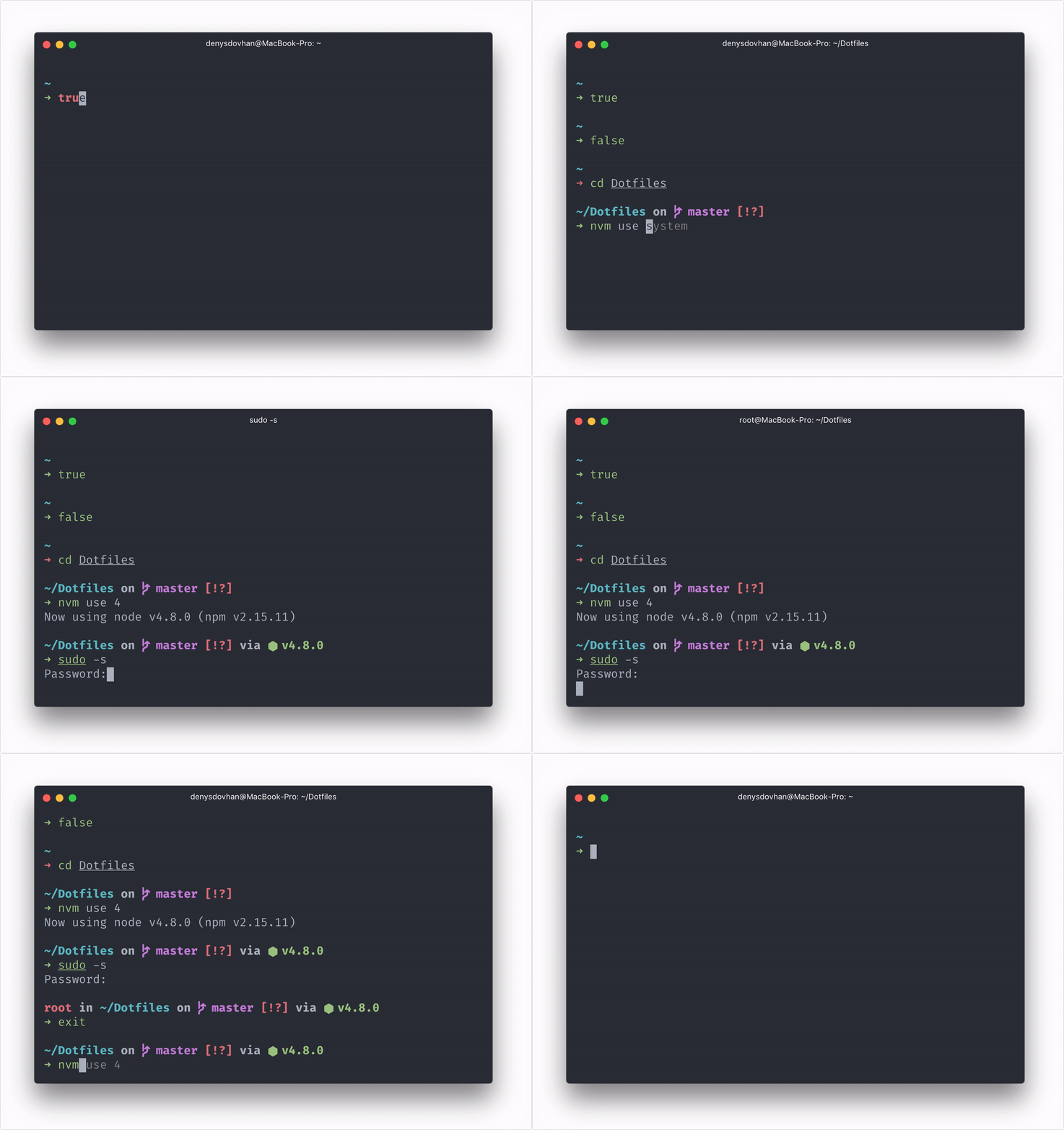
To work correctly, you will first need:
- zsh (v5.2 or recent) must be installed.
- Powerline Font must be installed and used in your terminal (for example, switch font to Fira Code).
Clone this repo:
git clone https://github.com/denysdovhan/spaceship-prompt.git "$ZSH_CUSTOM/themes/spaceship-prompt" --depth=1Symlink spaceship.zsh-theme to your oh-my-zsh custom themes directory:
ln -s "$ZSH_CUSTOM/themes/spaceship-prompt/spaceship.zsh-theme" "$ZSH_CUSTOM/themes/spaceship.zsh-theme"Set ZSH_THEME="spaceship" in your .zshrc.
If you are looking for an alternative Starship is one of them.
That is why I recommend using Firefox. Especially Firefox in the version 85 cracks down on supercookies.
My list of extensions:
- uBlock Origin. An efficient blocker add-on for various browsers. Fast, potent, and lean. With uBlock I am subscribed to an adblock list to block "browser-based crypto mining"
- DuckDuckGo Privacy Essentials. DuckDuckGo Privacy Essentials comes packed with best-in-class privacy essentials and makes browsing in Firefox even faster.
- Facebook Container. Facebook Container works by isolating your Facebook identity into a separate container that makes it harder for Facebook to track your visits to other websites with third-party cookies.
Another tool that I like it is AdGuard. AdGuard is ta standalone ad blocker for Mac, Iphone, etc... No need for extra applications or browser extensions. Just download ad blocker for Mac by AdGuard and kill a small flock of birds with one stone. 🤷🏻♂️
You're all set! 🎉
That’s all our need to get up and running with JavaScript-based front-end development on our Mac.