Models
In order to view and interact with the models of Sekiro, these requirements must be met.
- Unpack the Sekiro
.exewith UXM. - Have Yabber installed.
- Have FLVER Editor installed.
Optional: Have Yapped installed.
➡ Download UXM, Yabber, FLVER Editor and Yapped in the Tools page.
All models, including character models and map objects — not to be confused with maps themselves — are found in a .flver format.
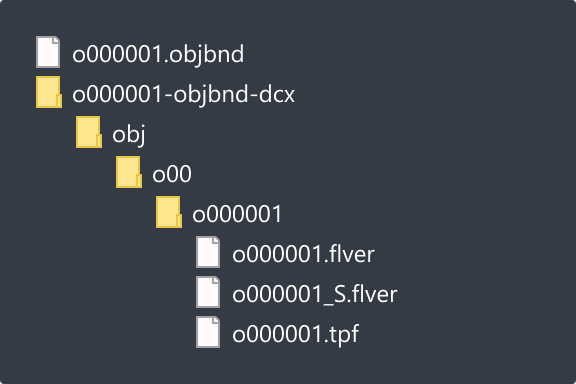
Objects are found in the obj folder.
Character models are found in the chr folder.
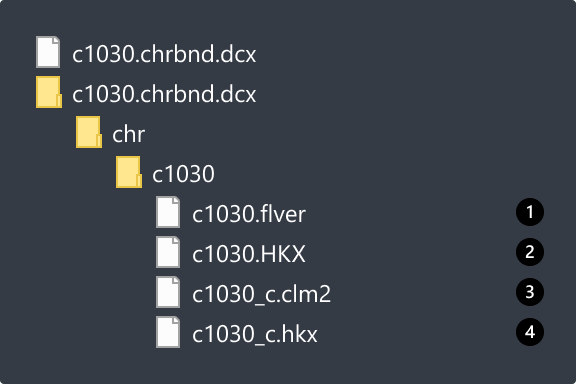
Contains the character's model.
Contains collision information.
Contains cloth physics information.
Contains cloth physics information.
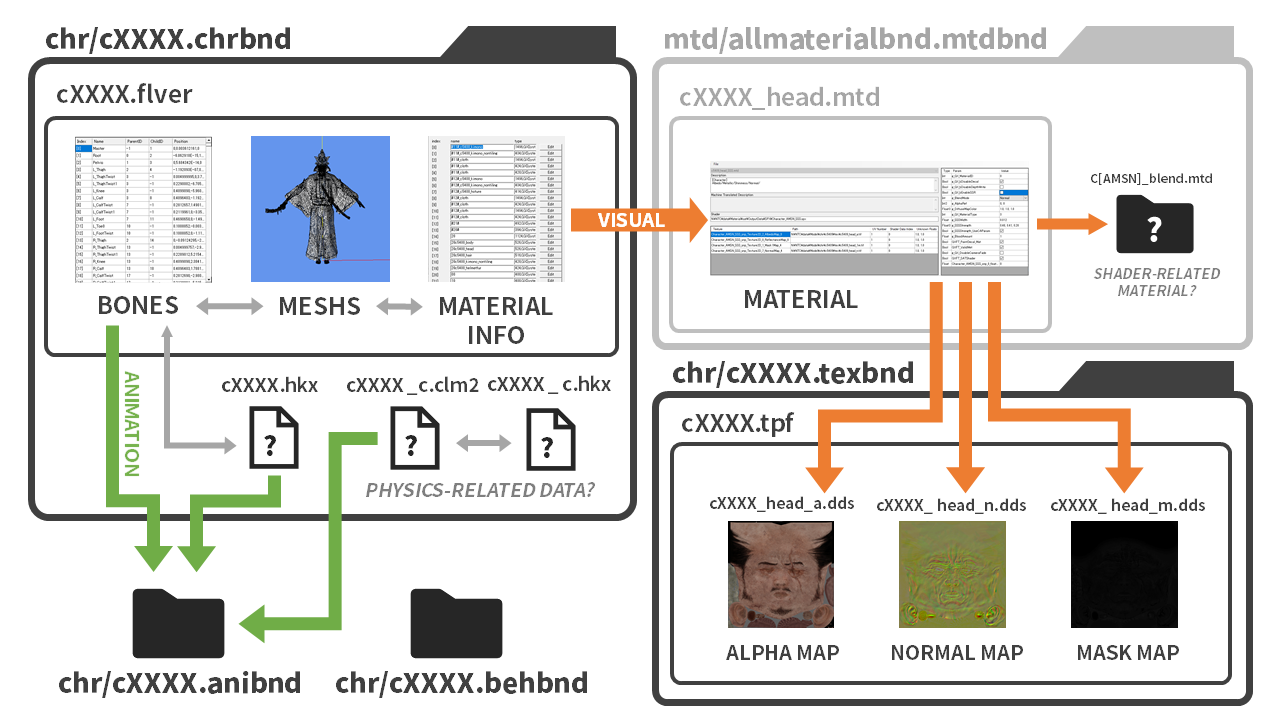
The .flver file contains three main elements: Bones, Meshes, Material info and Materials themselves.
Can be edited in FLVER Editor. To download it, visit the Tools page.
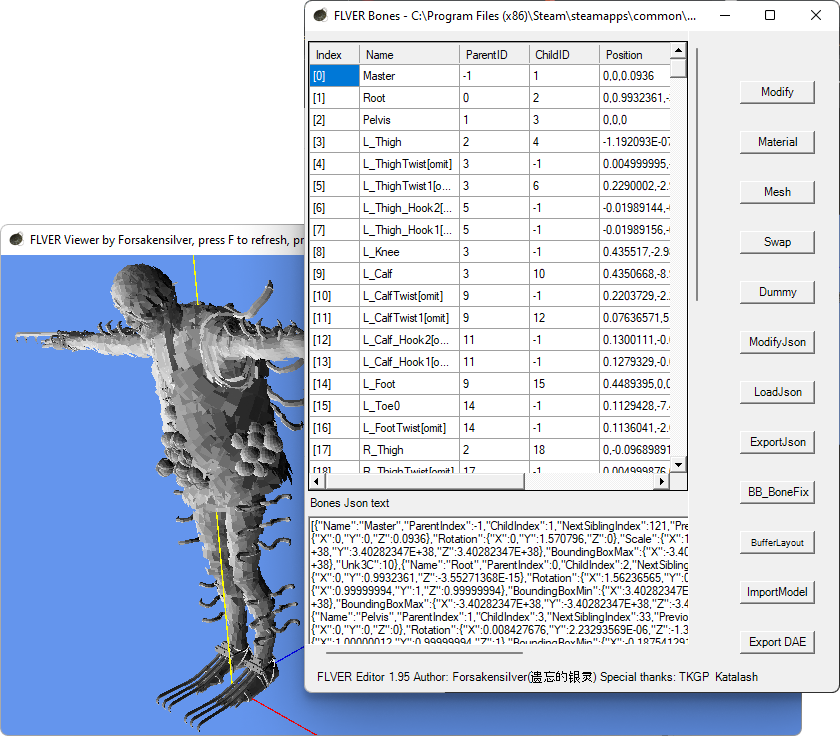
Bones are points which models snap to, making them follow a character's animations. It is currently possible to edit Bones, but due to the inability to edit animations — cXXXX.hkx and cXXXX.skelton — it is somewhat pointless.
⚠ Can be edited, imported and exported from FLVER Editor.
Meshes are polygons consisted of vertices, edges and surfaces. In most cases, a model consists of several meshes — called sub-meshes — and each of which gets assigned different material data.
⚠ Can be exported from FLVER Editor as .dae and can be imported to FLVER Editor as .fbx.
Meshes can be toggled on and off depending on their ModelDispMask. Masks can be created by adding #XX# to a mesh or sub-mesh's name, with XX corresponding to the ID of the ModelDispMask you want to assign it to. ModelDispMasks range from 01 to 31 and are always valid.
⚠ Note: When a mesh does not have a ModelDispMask's #XX# in its name, it is always visible.
These masks appear within Yapped, found in NpcParams for characters. This is where one can toggle them on or off. It's important to note that Yapped will show toggles for all 31 masks, regardless of whether a mesh contains that ID or not.

Material info specifies which sub-meshes should have what material. Material info is not a material itself, simply a link to a material.
Materials specify the textures and shaders applied to meshes. Materials are located at mtd > allmaterialbnd.mtdbnd.
Can be edited in MTD Editor. To download it, visit the Tools page.
A material will define the way a texture is presented. Character textures can be found in texbnd folders in chrbnd, while obj textures are usually bundled inside the object's folder itself.
⚠ Caution: To make textures display correctly in-game, the description must be consistent with the content of the Material info in the .flver file.
⚠ Caution: In the texture file address, you may notice it references a .tif instead of a regular .dds as its texture file. When referencing another, new texture, follow the same pattern, as such: N:\NTC\data\Model\chr\cXXXX\tex\cXXXX_TEXTURENAME_a.tif
Here's a helpful diagram explaining the relationship between files and data contained within.
This page was only possible due to the contribution of our community member MikiriThis.