Reference Smart Notifications
Smart notifications in Workgrid are an important mechanism by which your organization can interact with users. There are many use cases for Smart Notifications such as sending approvals, announcements or anything of particular interest to your users. This document will cover the high-level concepts you need to understand as an engineer creating Smart Notifications in Workgrid.
Smart Notifications in Workgrid have a lifecycle as shown below:

| Lifecycle State | Description |
|---|---|
| Created | This is the first state for a Smart Notification immediately after the job to create it has been completed |
| Actioned | In the Actioned state, the user who received the Smart Notification has clicked on a button of type Action.Submit. Workgrid can notify your system when a Smart Notification enters the actioned state, or your system can poll for actioned events. Please see the Events API reference. |
| Processed | A Smart Notification enters the processed state after the user’s action has been successfully processed in the source system and the completion has been reported back to Workgrid. This will also inform the user that the action has been completed. Please see the Events API reference for details on how to process an event. |
| Deleted | The user deleted the Smart Notification |
As noted in the Jobs Reference a correlation identifier may be optionally included in a job request. This value can be any string and it links your source system to Workgrid. Correlation identifiers make it possible to associate multiple actions taken in Workgrid with events in the source system, creating a one-to-many relationship among actions taken in Workgrid as jobs. The most common value for a correlation identifier would be a unique identifier that represents a transaction (such as an approval) in the source system. In the examples below we'll demonstrate how you can use correlation identifiers to work through various approval scenarios.
Sending smart notifications that require an approval or rejection from a user is one of the most common use cases in Workgrid. These examples outline common approval scenarios and how you can make use of the Workgrid APIs to complete each scenario. These examples do not cover all the possible approval scenarios, but they should give you a good understanding of the possibilities of Workgrid enabling you to mix and match the patterns below to meet your need.
This is quite possibly the simplest approval flow. It consists of a single approve and the transaction is complete once the user takes action.

- Create a job request to create a smart notification sent to the specific user providing a
correlationIdthat uniquely identifies the transaction in your source system, and optionally store thejobIdreceived in the response. - If the user actions the smart notification in Workgrid and you receive the event (see receiving events in Workgrid).
- Make the appropriate API call in your source system.
- Mark the event as processed using the Workgrid Events API.
- If the user actions the transaction in the source system create a smart notification deletion request using the Workgrid Jobs API and passing in the
correlationIdorjobId.
In this flow once an approver takes action on an item, like approving a request, the next approver needs to approve it until all required approvals have happened.

- Create a job request to create a smart notification sent to the specific user providing a
correlationIdthat uniquely identifies the transaction in your source system, and optionally store thejobIdreceived in the response. - If the first approver approves the smart notification in Workgrid and you receive the event (see receiving events in Workgrid).
- Make the appropriate API call in your source system.
- Mark the event as processed using the Workgrid Events API
- Create a job request sending a new smart notification to the second approver providing a
correlationIdthat uniquely identifies the transaction in your source system, and optionally store thejobIdreceived. - If the second approver actions the second notification:
- Follow steps 2.1 and 2.2 above
- If the first approver approves the transaction in the source system:
- Create a smart notification deletion request using the Workgrid Jobs API and passing in the
correlationIdorjobIdthat removes the approval from the first approver in Workgrid - Create a job request sending a new smart notification to the second approver providing a
correlationIdthat uniquely identifies the transaction in your source system, and optionally store thejobIdreceived.
- Create a smart notification deletion request using the Workgrid Jobs API and passing in the
- If the first approver rejects the smart notification in Workgrid and you receive the event (see receiving events in Workgrid).
- Make the appropriate API call in your source system.
- Mark the event as processed using the Workgrid Events API.
- Create a job request to create a smart notification sent to the specific user providing a
correlationIdthat uniquely identifies the transaction in your source system, and optionally store thejobIdreceived in the response.
Note: That Steps 2 and 3 above would apply to any number of additional approvers that you require in your system.
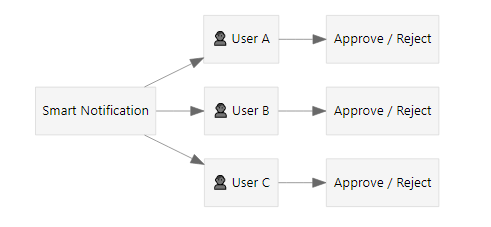
In this scenario multiple approvers are associated with a single transaction and when one individual approvers or rejects the transaction is complete.

- Create a job request to create a smart notification sent to all the required approvers providing a
correlationIdthat uniquely identifies the transaction in your source system, and optionally store thejobIdreceived in the response. - If one of the users actions the smart notification in Workgrid and you receive the event (see receiving events in Workgrid).
- Make the appropriate API call in your source system.
- Mark the event as processed using the Workgrid Events API.
- Create a smart notification deletion request using the Workgrid Jobs API and passing in the
correlationIdorjobIdthat removes the approval from the other approvers associated with the transaction.
- If the user actions the transaction in the source system create a smart notification deletion request using the Workgrid Jobs API and passing in the
correlationIdorjobIdto remove the approval from the other approvers associated with the transaction.
In this scenario multiple approvers are associated with a single transaction and when one individual approvers or rejects the transaction is complete. A situation ocurrs such that Bob (see Current State below) needs to be removed from the approval and replaced with Joe (see Target State), after which any one of the users approves or rejects the transaction.

- Create a job request to create a smart notification sent to all the required approvers providing a
correlationIdthat uniquely identifies the transaction in your source system. - To remove Bob create a smart notification deletion request using the Workgrid Jobs API and passing the
correlationIdas well as an audience that contains the email for Bob. - To add Joe submit a smart notification creation request using the Workgrid Jobs API and providing the same
correlationIdas step 1. - If one of the users actions the smart notification in Workgrid and you receive the event (see receiving events in Workgrid).
- Make the appropriate API call in your source system.
- Mark the event as processed using the Workgrid Events API.
- Create a smart notification deletion request using the Workgrid Jobs API and passing in the
correlationIdthat removes the approval from the other approvers associated with the transaction.
- If the user actions the transaction in the source system create a smart notification deletion request using the Workgrid Jobs API and passing in the
correlationIdto remove the approval from the other approvers associated with the transaction.
In this scenario multiple approvers are associated with a single transaction and all approvers are required to approve the transaction for it to complete and any rejection cancels the entire transaction.
- Create a job request to create a smart notification sent to all the required approvers providing a
correlationIdthat uniquely identifies the transaction in your source system, and optionally store thejobIdreceived in the response. In your own data store you should store who you sent the smart notification to, and set the current status tounacted(as an example). - If one of the users approves the smart notification in Workgrid and you receive the event.
- Make the appropriate API call in your source system.
- Mark the event as processed using the Workgrid Events API.
- Update your data store to mark the notification as approved by the user in the Workgrid event.
- Check your data store to determine if the transaction has been approved by all required users and take any necessary API action in your source system.
- If the user approves the transaction in the source system
- Update your data store to mark the notification as approved by the user
- Create a smart notification deletion request using the Workgrid Jobs API and passing in the
correlationIdorjobIdas well as a audience that contains the email for the user who approved the transaction to remove the approval from the user in Workgrid. - Check your data store to determine if the transaction has been approved by all required users and take any necessary API action in your source system.
- If a user rejects the smart notification in Workgrid and you receive the event.
- Make the appropriate API call in your source system to reject the transaction.
- Create a smart notification deletion request using the Workgrid Jobs API and passing in the
correlationIdorjobIdthat removes the approval from the other approvers associated with the transaction.
- If a user rejects the smart notification in the source system
- Create a smart notification deletion request using the Workgrid Jobs API and passing in the
correlationIdorjobIdthat removes the approval from the other approvers associated with the transaction.
- Create a smart notification deletion request using the Workgrid Jobs API and passing in the
In this flow once an approver takes action on an item, like approving a request, the transaction is removed from all approvers in level 1 (see below) and all the approvers in level 2 (see below) now receive a smart notification to take action on the transaction.

This flow is a combination of the Single Approver with Multiple Levels of Approvers and Multiple Approvers with Single Approval/Rejection Required patterns. Conceptually each level of approvals follows the ‘multiple approvers’ pattern and if someone approves the transaction it follows the ‘single approver’ pattern in that a new smart notification creation request needs to be submitted to a group of approvers.